

Launch
The Launch page is your control center. Here you can start farming, run AutoFarmer, refresh fees, and close running items. It is made for quick actions without changing settings.
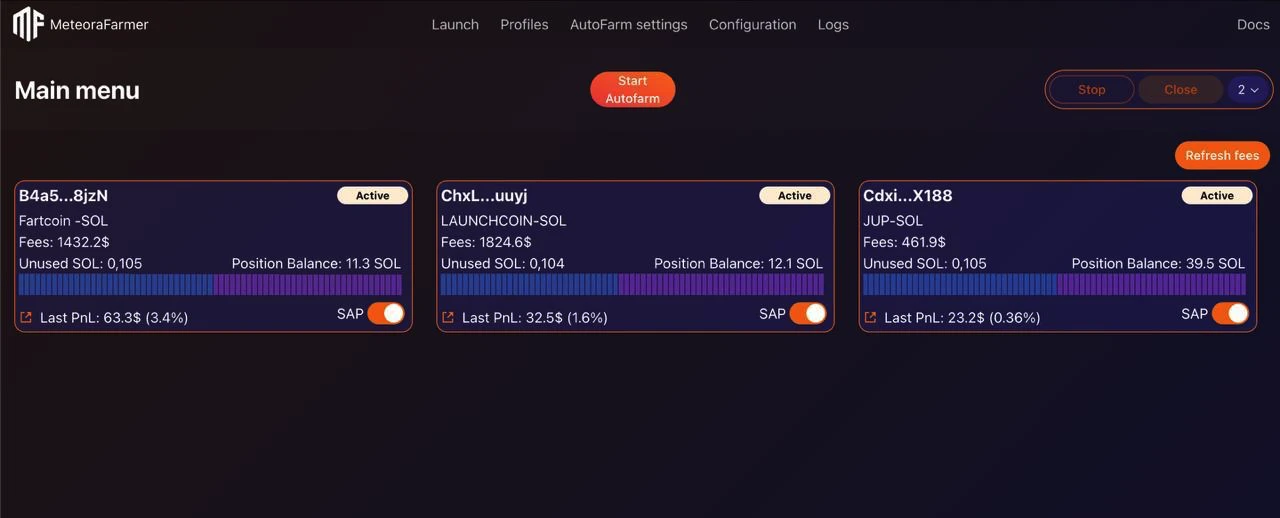
Start Autofarm
A large central button. It starts AutoFarmer with your saved AutoFarmer settings.
- Uses your finder filters and timers.
- Uses global limits (tick time, priority fee).
- You can stop the actions using the “Stop AutoFarm” button. It will close and exit the autofarm positions.
If AutoFarmer is not configured yet, open “AutoFarm settings” first.
Action bar (top-right)
Start (dropdown)
Opens a menu with three launch modes:
- Start — open a single position (standard mode)
- Start 3 — open a 3‑position cluster inside the same pool
- Start 5 — open a 5‑position cluster inside the same pool
Multi-Position Cluster (Start 3 / Start 5)
Start 3 and Start 5 opens 3 or 5 positions in the pool, thus creating a 3x of 5x more bins than you configured in account settings. It creates a rotating “cluster” of parallel sub‑positions in one pool. Typical layout blends 50/50 (Spot-style) and one-sided BidAsk bias layers if the BidAsk strategy is used in account settings. All positions sit around current price; when price moves far enough, the two farthest (in Start 5) or the outermost (in Start 3) are closed and immediately reopened on the opposite side—closer to the new price. This maintains a dense coverage window and reduces missed micro‑moves.
Core mechanics:
- Initial cluster placed (one-sided or centred, depending on your strategy settings)
- Price drifts → detect outer distance threshold
- Farthest sub‑positions: mark stale → close → reopen past the “near” side (now forming a re-centered cluster)
- Central layers remain untouched (fewer full churn events)
Benefits:
- Reduces “all or nothing” reopen cycles of a single wide position
- Smoother aggregate fee curve vs single position “spikes”
- Lets you outfarm classic farmers in small bin-step pools
Close
Stops/closes the selected items.
- For active positions, this performs a normal close and swap-out.
- If SAP is enabled on a card, Close will also swap the remaining tokens to your chosen asset.
Profile selector
Choose the profile you want to run
Item cards
Each card shows core live metrics:
- Pair: token pair (e.g. TROLL-FARTCOIN)
- Bins
- Fees: unclaimed fees
- Value (SOL): position value converted to SOL
- PnL: realized (and session if displayed)
- SAP: toggle (orange = on; swaps to selected asset on Close)