

Quick Start Guide
Get MeteoraFarmer up and running in under 10 minutes. This guide will help you set up the software on your local computer and start your first farming position.
Perfect for
- First-time users
- Local computer setup
- Testing the software
Prerequisites
Before starting, make sure you have:
- Windows 10+
- At least 2GB RAM and 1GB free disk space
- Stable internet connection
- A Solana wallet with some SOL for fees
Step 1: Get Your License
- Visit our Website
- Choose between:
- 1-month Free Trial (2.5% commission on fees)
- Monthly Subscription (0% commission)
- Complete the payment or get free trial and save your license key
Trial vs Paid
The trial version has all features unlocked. The only difference is the 2.5% commission on earned fees.
Step 2: Download & Install
- Download the latest version
- Extract the archive to your desired folder (e.g.,
C:\MeteoraFarmer\) - Run the application by double-clicking
MeteoraFarmer Setup.exeor executable with similar name (e.g.MeteoraFarmerTrial Setup 1.0.2.exe) - Enter your license key when prompted
The software will automatically create necessary configuration files on first run.
Step 3: Configure RPC Connection
You need a Solana RPC endpoint to connect to the blockchain. We recommend Helius for beginners:
Setting up Helius (Free)
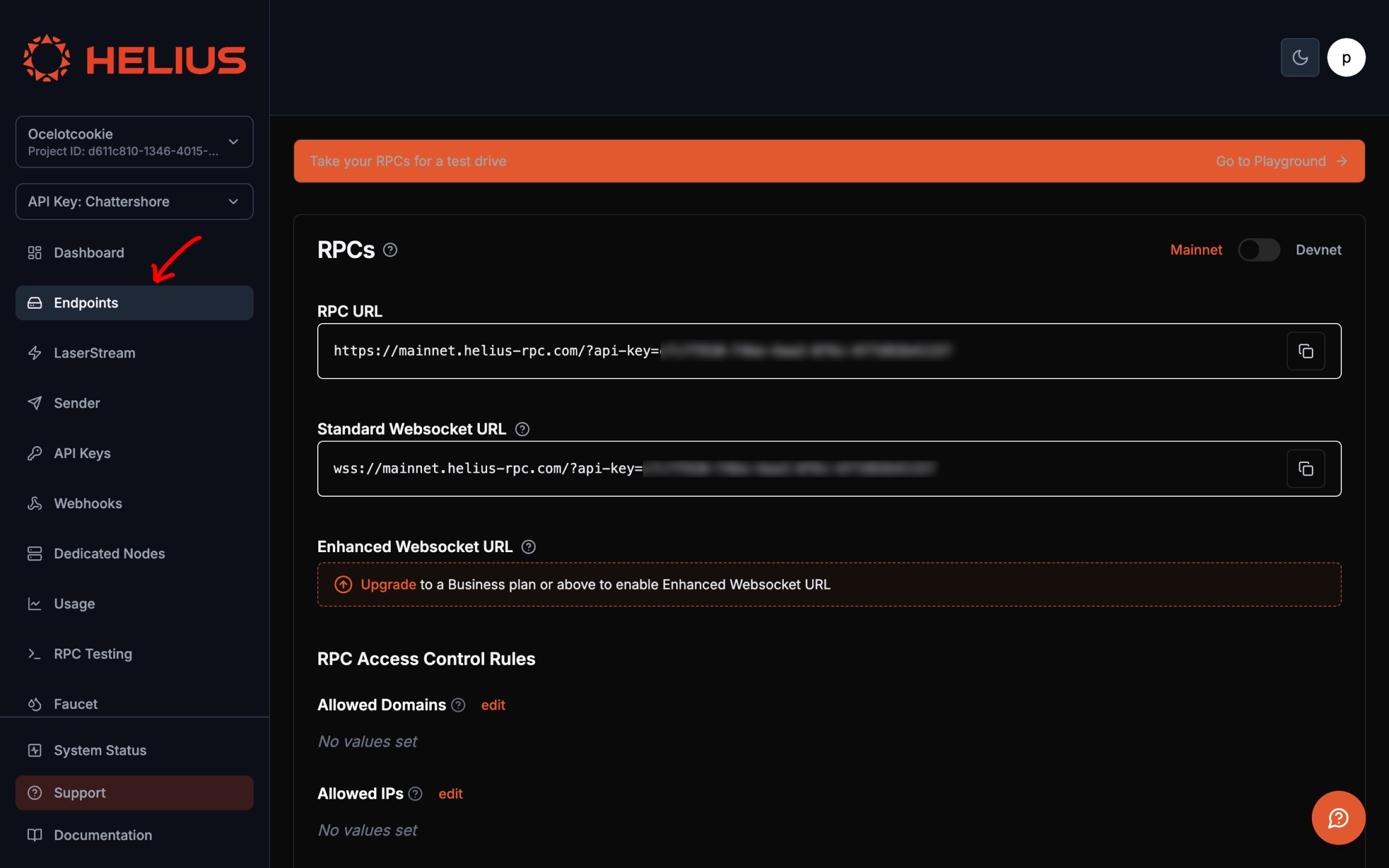
- Go to dashboard.helius.dev
- Sign up for a free account
- Navigate to Endpoints → RPC URL
- Copy your RPC URL (looks like
https://mainnet.helius-rpc.com/?api-key=cfcf09..., may vary)
Configure in MeteoraFarmer
- Open the Configuration tab
- Paste your RPC URL in the RPC NODE field
- Leave other settings as default for now
- Click Save
Free Tier Limits
Helius free tier supports ~10 concurrent accounts.
Step 4: Add Your First Account
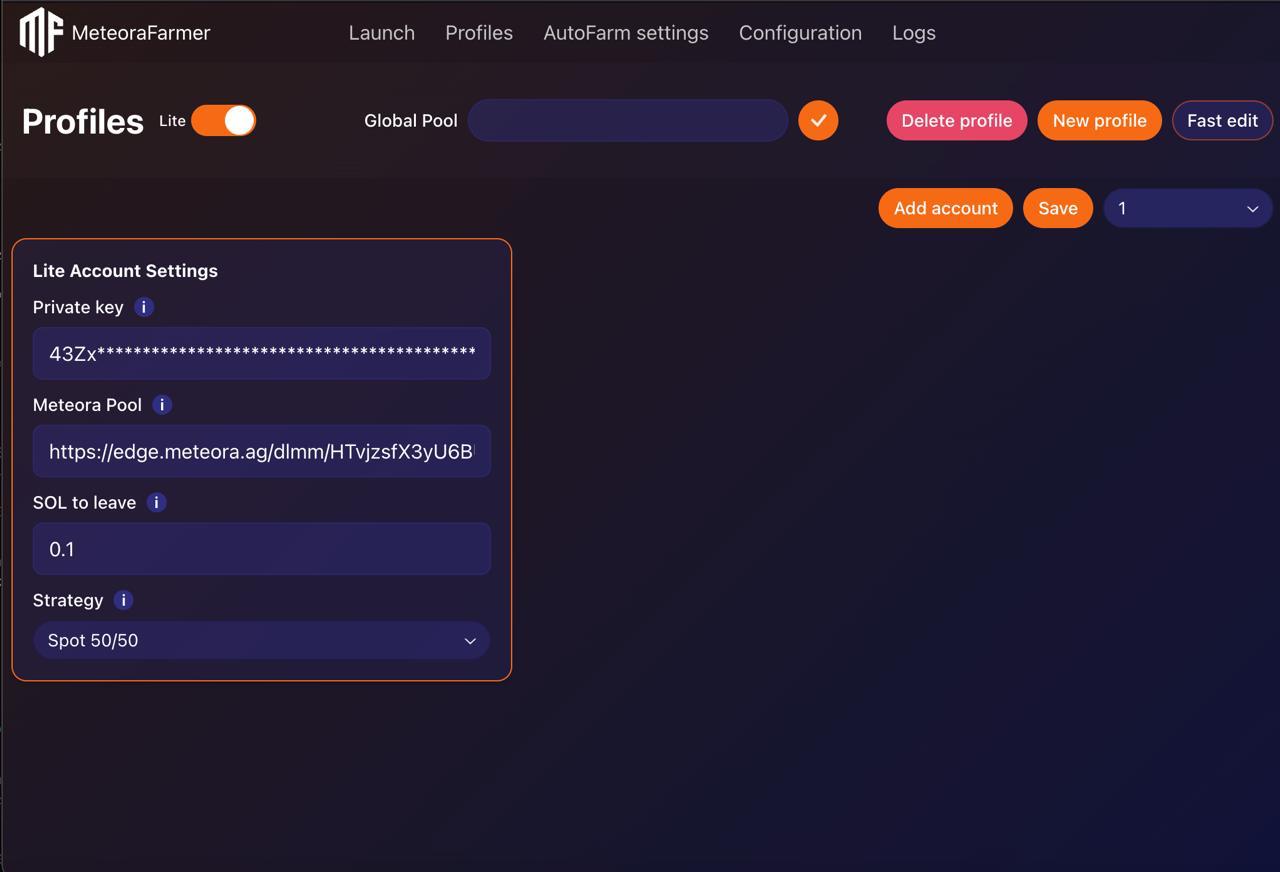
- Go to the Profiles tab
- Fill in Private key field
- Visit app.meteora.ag
- Browse available DLMM pools
- Click on a pool you're interested in
- Copy the URL from your browser
- Paste it into the Pool field in MeteoraFarmer
- Click Save
Step 5: Find a Good Pool
Pool Selection
You can find good pools through Meteorai or our PoolParser from the Telegram community, which uses our unique algorithm to find the most profitable pool at the moment.
Step 6: Start Farming
- Go to the Launch tab
- Select your account profile
- Click Start to begin farming
- Watch your account status change to "Active"
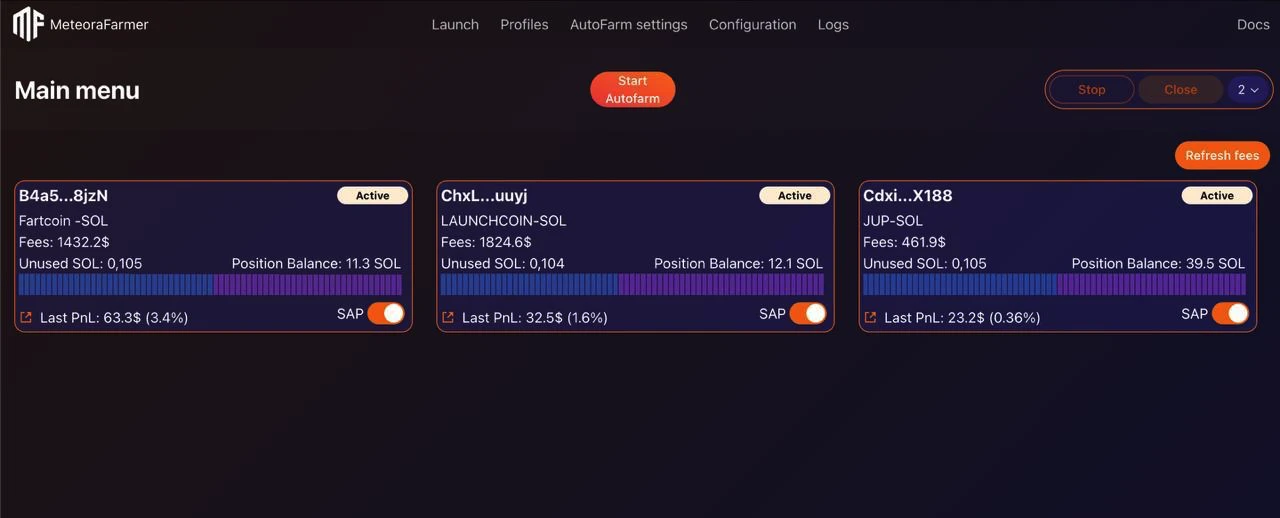
Your account card will show:
- Current pool information
- Earned fees
- Available SOL balance
- Position value
- Live bin visualization
Step 7: Monitor Your Position
Account Status Indicators
- Starting: Account is preparing
- Opening: Account is opening position
- Active: Position is open and earning fees
- Swapping: Tokens are being exchanged
- Closing: Position is being closed
- Inactive: Account is idle
When Positions Reopen
The software automatically reopens positions when:
- Price moves outside your bin range
- You manually close and restart
Step 8: Analyze Your Farming
Use our analytics dashboard to understand how your farming performs over time and make informed decisions. Watch profit and fees grow, spot strong and weak periods, and compare setups without guessing.